 Knowmad
How Knowmad works
Knowmad is a reading app for iPhone and iPad. You read your own books, such as textbooks and nonfiction, turn passages and figures into flashcards linked to their page, save new words with a definition in simple words or a translation, and review both with spaced repetition. This page explains each part.
A reader for books you read to learn
The reader is where everything starts: you define words, make flashcards and start study sessions from the page.
Pick up where you stopped
Knowmad saves the exact page and scroll position. A book stored in iCloud opens at that spot on your other devices.
Scroll or turn pages
Choose continuous vertical scrolling or page turns for each book. Tap the page to hide the controls, and tap again to bring them back.
Move around the book
Use the table of contents, page thumbnails and links inside the book. Back and forward arrows return you to the page you came from.
Zoom for dense pages
Double-tap a text column to fit it to the screen; the line you tapped stays where it was. Pinch to zoom up to four times.
Highlights
Knowmad shows highlights, underlines and strikethroughs already in a file. Tap one to define its words, turn it into a flashcard or remove it. You can't add new highlights or notes; select text to make a flashcard or save a word instead.
Reading time
Each book records how long you have read it and how many reading and study sessions you have had. Open Info from the ⋯ menu in the reader to see them.
Flashcards from the page, linked back to it
A flashcard has a question side and an answer side. Each side can hold formatted text, an image, or both, and every card belongs to the book it came from.
Turn a passage or quote into a card
Select text and tap New Flashcard. The text becomes the answer and the editor opens. Tap Generate and AI writes the question, or write your own.
Collect text from several pages
Use the buttons at the bottom of the reader to add selections to the question or the answer as you read, then tap Finish Flashcard. Finish the card before you close the book, because collected text that isn't saved is not kept.
Crop a figure
Tap Crop and drag a rectangle over a diagram, formula or figure. Use it as the question or the answer image, and the editor opens.
Edit the card
Format the text and add an image to either side from the page, your photos or the camera. Undo and redo cover every change in the editor.
Optional AI help
AI can write a question from your answer. Tap Refine on the answer to make it concise, or to turn it into key points or a sectioned list. You decide what to keep, and the app never creates cards on its own. Each result shows where it came from: Apple Intelligence or your own provider and model.
Go back to the page
Every card keeps the page it came from. Open a card and tap Go to Source to open the book at that page. While you study a book's cards, Go to Source is in the ⋯ menu, and you can resume the session afterwards.
Find cards in a book
Each book has its own flashcards. Filter them by New, Learning and Learned, search their text, sort them, or group them by the book's chapters.

Words explained in simple words, or translated
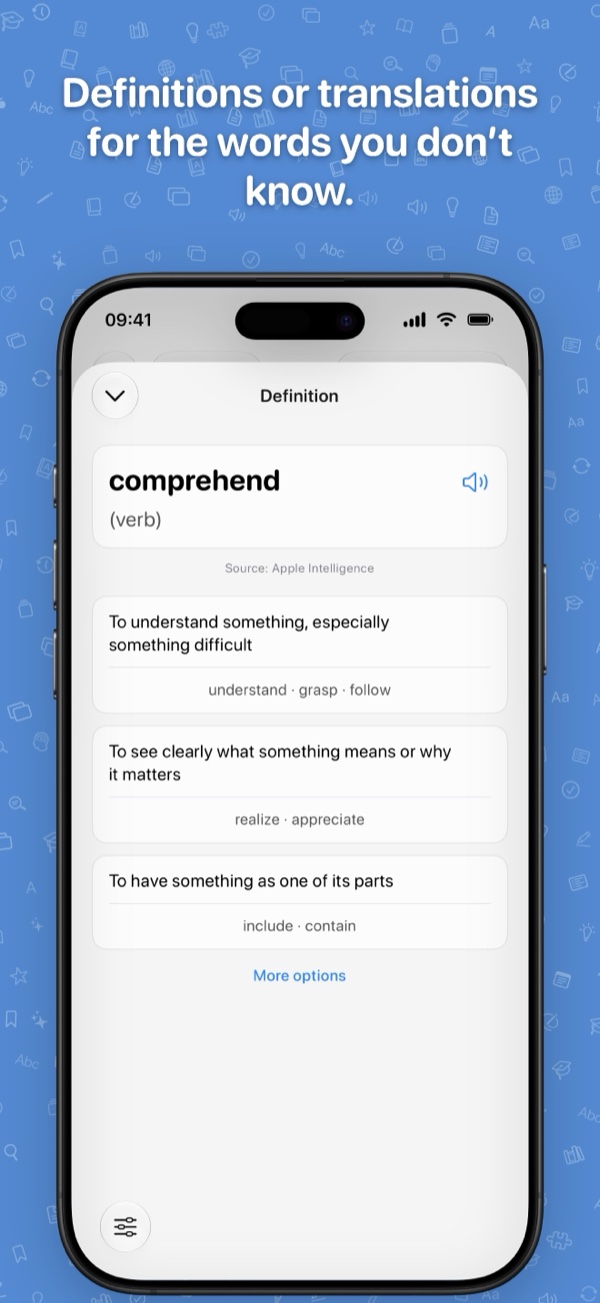
Saved words are separate from flashcards. Each one has its part of speech, a meaning, example sentences and spoken pronunciation, and its own way of being studied.
Define a word or a passage
Select a word and tap Define to see its meaning. Select a longer passage, and Knowmad splits it into words so you can choose which ones to save. Words in the passage are shown in three ways:
- horizon New to you
- gale Saved
- the Marked as known
A definition or a translation, chosen per language
The first time you look up a word in a language, you choose a translation into your language or a definition in the book's language. You can change it later: for one book with the AI button on the word screen, or for the whole language in Settings → Apple Intelligence on devices that support it.
Definitions in simple words
Definitions follow the style of a learner's dictionary: simple, common words, without using the word being defined. Meanings match the part of speech, so "run" the verb and "run" the noun are saved as two words.
Examples from your book
The first example is the sentence where you found the word. Generated examples prefer words you have already saved, and you can edit, remove or add examples.
Hear the word
Pronunciation uses the device's own speech and needs no AI.
Phrases and known words
Join neighboring words such as "give up" into one entry with Group into phrase. Mark as Known marks every word in a selection as known, so those words stop being shown as new. Marking words as known is free and has no limit.
Finish later
If you selected a passage, you can close the word screen and keep reading. Tap Finish Definition at the bottom of the reader to come back to its words.
What needs AI
Definitions and examples need Apple Intelligence or your own AI key; translations don't. See Connect Your AI.
Review at growing intervals
Spaced repetition brings each flashcard and word back after a wait that grows each time you remember it. For the whole method, see how to remember what you read.
The intervals
Each flashcard and word comes back after these waits:
- 1 day
- 2 days
- 3 days
- 5 days
- 8 days
- 13 days
- 21 days
- Learned: then 34, 55, 89 days and longer
After the 21-day review it counts as learned.
Flashcards: Remembered or Forgot
A card shows its question first. Try to recall the answer before you flip it; this is called active recall.
| Your answer | What happens |
|---|---|
| Remembered, before flipping the card | Moves forward two steps |
| Remembered, after flipping the card | Moves forward one step |
| Forgot | Moves back two steps |
At the end of a session you can go through the forgotten cards again. That extra round doesn't change their schedule.
If you keep forgetting a card, edit it during the review: make the question more specific or the answer shorter.
Words: three kinds of questions
A new word starts with one learning session of three rounds: pick it from four options, build it from letters, then type it. In later practice each question gets harder as the word moves forward. Later reviews are cards you check yourself.
Learned and Complete
A learned item keeps coming back at longer intervals. Complete removes it from study, and it stays in its collection.
Studying ahead
You can select cards or words in a collection and study them at any time. Only scheduled reviews change when an item comes back.
When reviews pile up
Knowmad shows the most overdue items first, compared with their interval. There are no streaks. A study day runs from 4 a.m. to 4 a.m., so a late-night review counts for the day before.


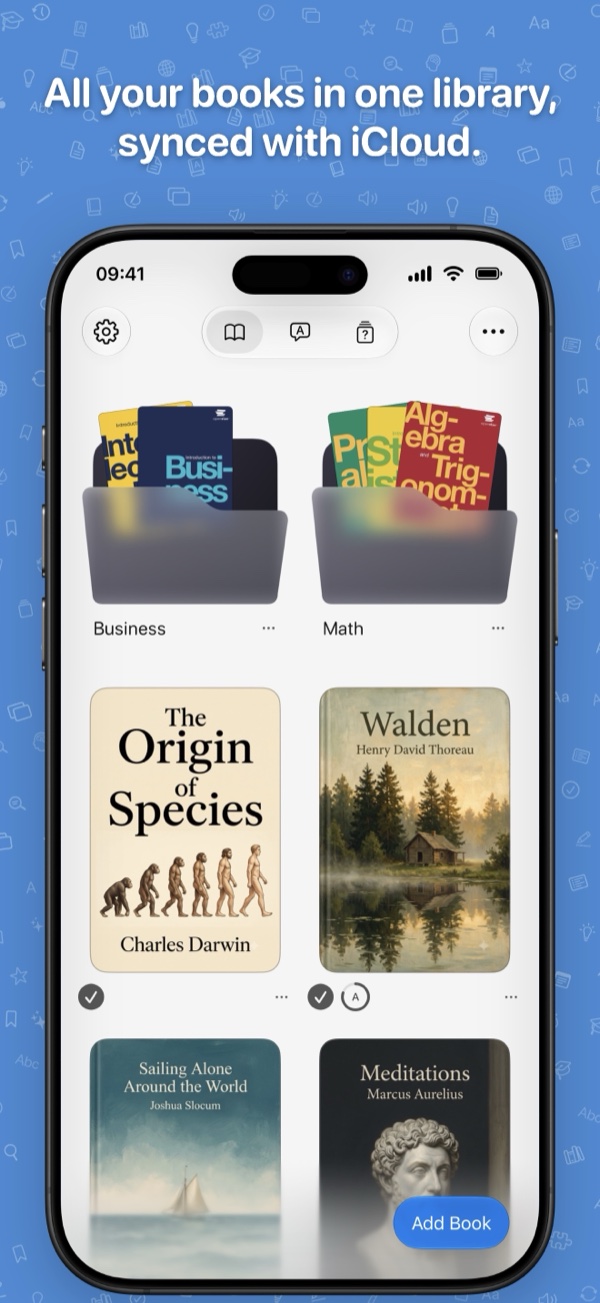
Your books in your own iCloud
There is no Knowmad account. Books are stored in your own iCloud or on the device, and flashcards and words sync through your own private iCloud database.
Folders
Tap Add Book to import files, create folders inside folders, and drag books and folders to move them.
iCloud or this device
Books in iCloud sync across your devices. Books stored on this device use no iCloud storage. Free Up Space removes downloaded copies and keeps the books in iCloud.
Progress on every cover
Rings on each book show reading progress, words learned and flashcards learned.
Study a whole folder
Study the due flashcards or words of a folder, or of the whole library, from the library screen.
Changes on two devices
If a book's file was changed on two devices, Knowmad shows both versions and you choose which to keep.
Back up your flashcards and words
Settings → Backup → Export Backup saves your flashcards, saved words and known words to one file. Import Backup adds them back, for example after you move to a different iCloud account. Books are not included.
Start with your next book
Free to start. No account.
Get Knowmad on the App StoreMade by Oleksandr Baralei, an independent developer, who answers every email at support@getknowmad.com.